



Mobile Venues
Set up food trucks and other mobile places with a weekly schedule and one-off stops.
Food trucks, pop-ups, and other places without a fixed address can list where they’ll be on Morsly, so guests always know where to find them.
In this guide: Turn on mobile mode, set a weekly schedule, add one-off stops, and understand what guests see.
Before you begin: You need a place on Morsly. Mobile mode works on both new and existing places. If you haven’t created a place yet, start with Getting Started.
Turn on Mobile place
In your place’s info settings, toggle Mobile place. This replaces the fixed address and weekly working-hours table with a schedule of stops.
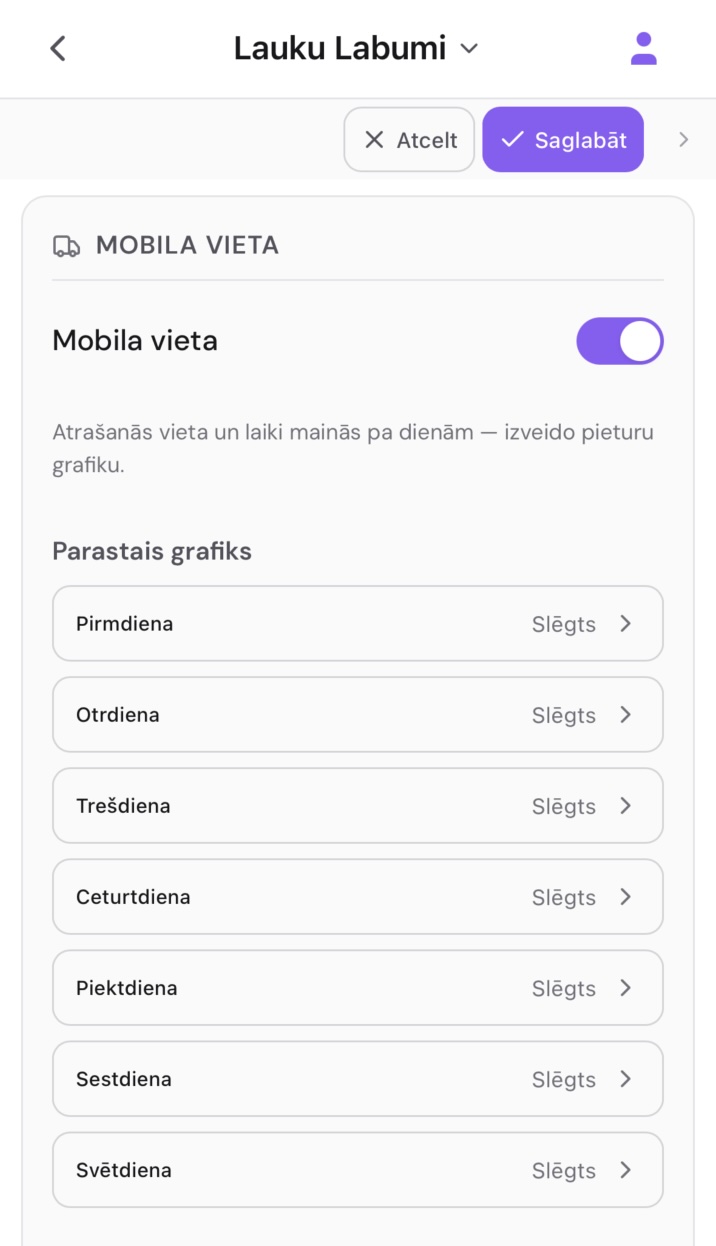
Set your weekly schedule
Your schedule has two layers:
- Weekly stops — your recurring baseline, one set per weekday (e.g. every Monday at the market, every Friday at the office park).
- Date overrides — one-off exceptions for a specific date, for when you’re skipping your usual spot or adding an extra one.
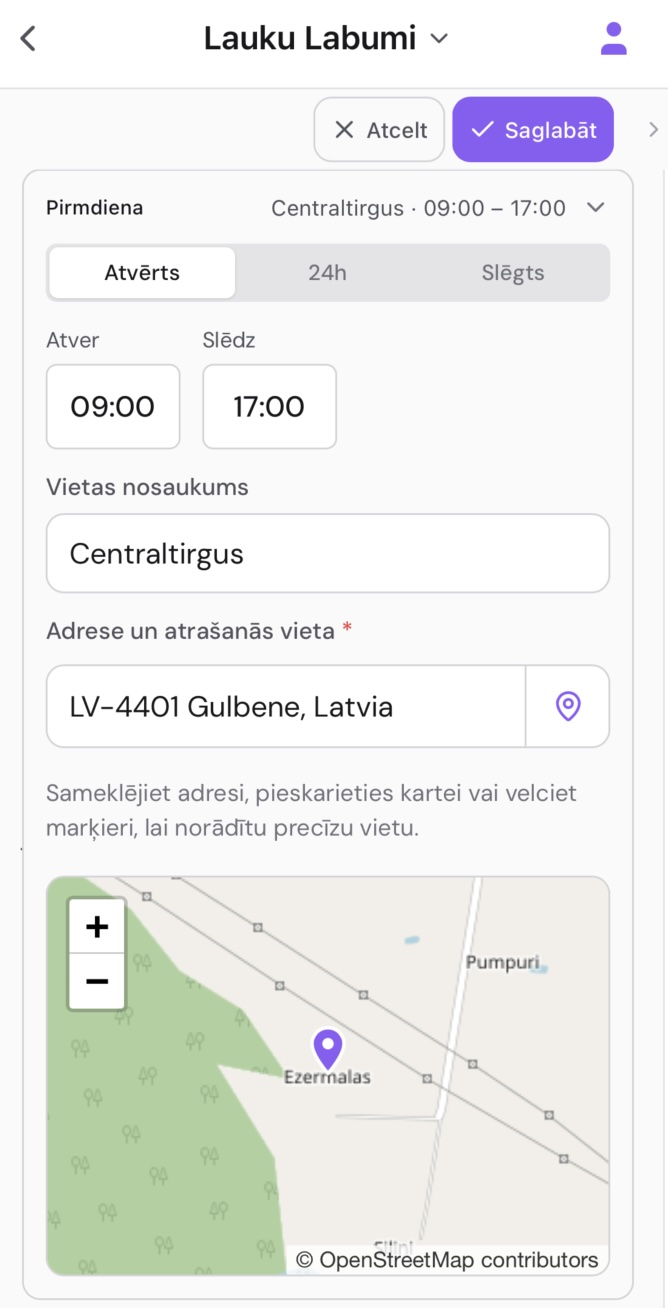
Each stop has a location (name, address, and map coordinates), a status (Open or Closed), and a time window. Guests always see the override for a given date if one exists, falling back to the weekly baseline otherwise.
Example: A food truck’s week
| Day | Weekly stop | Override |
|---|---|---|
| Monday | Kalamaja Market, 11:00–15:00 | — |
| Tuesday | — | — |
| Wednesday | — | — |
| Thursday | Noblessner Port, 12:00–20:00 | — |
| Friday | Office Park, 11:00–14:00 | — |
| Saturday | — | Closed (truck maintenance) |
| Sunday | — | — |
In this example, the truck opens at the market on Mondays, the port on Thursdays, and the office park on Fridays. Saturday is a recurring closed day, but if a one-off catering event comes up, you’d add it as a date override for that specific Saturday.
Guest view
On your place page, guests see:
- “Next: [day] · [location] [time]” at the top, so they know where and when to find you next.
- A note that this is a mobile place with no permanent address, plus an expandable Schedule.
- Map links for the current or next stop.
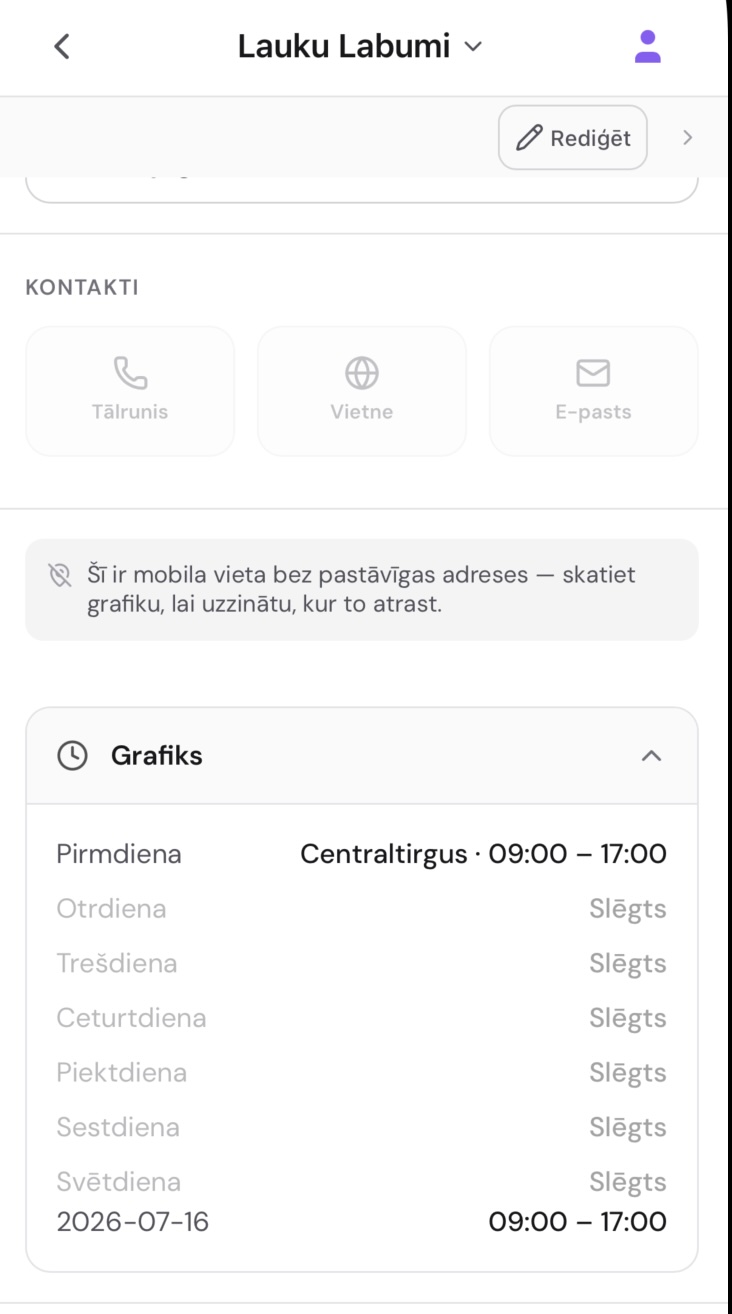
This replaces the static address and working-hours display used by fixed places.
Related guides
- Getting Started — create your place
- QR Codes — share your mobile place’s menu with guests
- Menu Management — keep your menu up to date
Frequently asked questions
Can I switch back to a fixed address after turning on Mobile place? Yes. Toggle Mobile place off in your place settings. Your schedule stops are preserved but hidden — if you turn mobile mode back on, they reappear.
Guests see the wrong schedule. What’s wrong? Check that your Weekly stops are correct for each day. If you have a Date override set for today, that takes priority over the weekly schedule — make sure it’s what you intended.
Can I have the same stop on multiple days? Yes. Each day of the week has its own schedule, so you can set the same location and time for multiple days if that’s your routine.
What’s the difference between weekly stops and date overrides? Weekly stops are your regular schedule — they repeat every week. Date overrides are exceptions for a specific date — they replace or add to the weekly stop for that one day, then the regular schedule resumes afterward.
What happens to my schedule if I turn Mobile place off and on again? Your stops and overrides are preserved. Turning mobile mode off hides them from guests; turning it back on restores them.
Need more help?
If you run into something this guide doesn’t cover, reach out through the Contact page.